May 28, 2026 · Bill Ferguson · Reviewed September 6, 2026
Setting Your Range: How to Configure Your Walk-Away Floor in Rotor Rate
Every job has a fair price and a walk-away floor — the room between them is where you actually negotiate. Here's how to set that range, sensible starting numbers, and the common traps that quietly widen or collapse the floor on you.
Every job has two numbers worth knowing before you accept the offer: the fair price (what the work is honestly worth) and the floor (the lowest you'll accept before walking away). The space between them is your negotiating room. Set it too high and you'll most likely lose winnable jobs. Set it too low and you'll end up working for scraps without realizing it.
Rotor Rate exposes both numbers and lets you tune the gap. This guide walks through exactly how to configure your "range" — in the free calculator and in the paid app — across the two scenarios that actually exist in practice.
What "the range" means inside Rotor Rate
A Rotor Rate quote produces three lines you can see on every job:
- Fair rate — on-site labor + drive labor (if billed) + fuel + out-of-pocket expenses + your post-processing time. This is your honest price; you're getting paid at 100% of your numbers.
- Walk-away floor — the lowest acceptable number after applying your configured tolerance.
- Verdict — one of Fair, Thin Margin, or Below Floor, based on where the offer lands relative to those two lines.
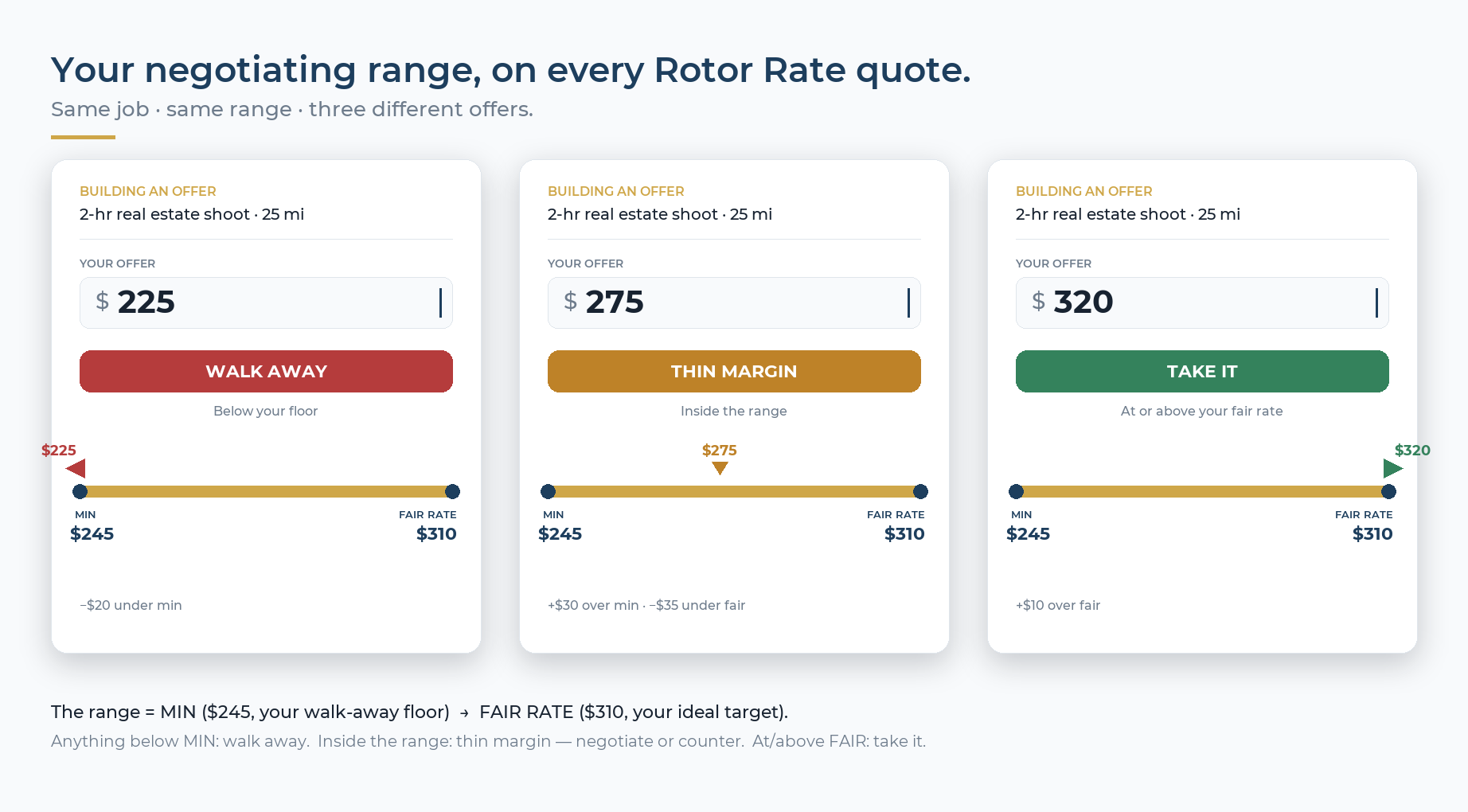
Same job, same range, three different offers. The walk-away floor ($245) and the fair rate ($310) anchor the bar in every card — only the offer moves. Below the floor it's Walk Away, inside the range it's Thin Margin (negotiate or counter), at or above the fair rate it's Take It.
The job of the range is to make the Thin Margin zone the right size for your business. A solo operator with a paid-off drone and low overhead can afford a wider range than a full-time pilot servicing $50k of gear and a vehicle payment. The defaults assume the conservative case; you'll almost always want to tune them.
This is the same math behind the Thin-Margin verdict and the decision tree in How to Say No — and How to Walk Away . Come back in a few weeks and read those for when to flex the range; however, for right now, this post is about how to set it up.
Two scenarios, two settings
The control you'll use depends on one thing: whether you bill the client for drive labor.
Scenario A — You bill for drive labor (most common for direct clients)
When the master toggle Do you charge for drive labor? is on, every fair rate includes a round-trip drive-labor line. That gives you something concrete to negotiate against: you can sometimes shave drive pay to win a good job without touching your on-site rate.
The setting that controls this is Bare-minimum: % of drive labor protected, inside Settings → Pricing. The math:
- floor = fair rate − (round-trip drive labor × % you're willing to forgo)
- 0% protected = willing to give up all drive pay before walking. Aggressive, leaves the widest negotiating room.
- 50% protected = willing to give up half. A reasonable middle.
- 100% protected = won't drop a dollar of drive pay. Floor = fair rate (zero negotiating room).
Worked example with a $500 fair rate that includes $100 of round-trip drive labor:
- 0% protected → floor = $400
- 50% protected → floor = $450
- 100% protected → floor = $500
Why this lever exists: even if you "give up" the drive pay on a quote, you still earn the Internal Revenue Service (IRS) standard mileage deduction on the round trip (see the current rate below) and you're still building windshield hours you can chain into an adjacent job. The drive-labor line is the most negotiable part of a price because the cost of driving doesn't go away whether you bill for it or not — only the charge does. The calculator makes this easier by letting you toggle between one-way or round-trip mileage entry, keeping the math accurate regardless of how you enter the distance. See Drive Time, Mileage, and Margin for the full breakdown.
Scenario B — You don't bill for drive labor (most common for network work)
If you roll travel into a flat trip fee, only deduct mileage on your taxes, or work mostly inside a tight service radius, your "drive labor" line is $0 — so there's nothing to "forgo." The drive-labor tolerance lever has nothing to bite on, and without a separate setting your floor would collapse to the fair rate itself (zero negotiating room on every quote).
The control for this case is Walk-away floor (% of fair rate). It works as a flat percentage of your fair rate:
- 100% = floor equals fair. No negotiating room.
- 90% = willing to drop 10% before walking.
- 75% = willing to drop 25%.
- 60% = willing to drop 40%. Aggressive — only sensible when you're filling otherwise-idle time, the deliverable is genuinely cheap to produce, or the job opens a real chain for other jobs in the area on the same day.
Same $500 fair rate:
- 100% → floor = $500
- 90% → floor = $450
- 75% → floor = $375
- 60% → floor = $300
Where to find it. Until recently this setting was only visible from the free calculator's inline panel (when the Charge for drive labor toggle was off). It now lives in the Pricing section of the paid app: Settings → Pricing — with the master drive labor toggle off, the Walk-away floor (% of fair rate) input appears. Free-calculator users still see the inline control on the calculator screen.
How to set up your range, step by step
- Pick your scenario. Open Settings → Pricing. If you bill clients for travel time (hourly, per-mile, or as a flat trip fee), keep the master toggle on. If you don't, turn it off.
- Set the right floor control. - Toggle on: set Bare-minimum: % of drive labor protected. Start at 50%. That gives you a sensible middle floor and a real lever to flex without giving away your on-site rate. - Toggle off: set Walk-away floor (% of fair rate). Start at 90%. You can drop 10% to close a borderline deal, but anything beyond that triggers a Below Floor warning.
- Run a sanity check. Open the Drone Services Pricing Calculator and plug in a typical job — your most common service line, a realistic distance, and a believable scope. Look at the fair rate and the floor. If the floor feels too high (you'd accept less), loosen the tolerance. If it feels too low (you'd never actually take that price), tighten it. Five minutes of tuning beats six months of accepting bad jobs.
- **Cross-check with the Hourly Rate Calculator.* Make sure your fair rate's on-site rate clears the sustainable* hourly rate that calculator returns. If the floor of a typical job drops your effective $/hr below sustainable, your range is too wide.
- Re-tune quarterly. Insurance, fuel, gear depreciation, and overhead all move. A floor that was right last winter is probably wrong now. When to Raise Your Drone Rates has the trigger list.
Common traps
- Setting the range purely on feel. The floor isn't a vibe — it's the lowest price at which the job still clears your real cost of working. Build your hourly rate first (guide ), then back into a tolerance that protects it.
- Confusing the IRS deduction with charging the client. Turning off Charge for drive labor means the client isn't billed for it. You still claim the standard mileage deduction on your taxes — the IRS sets the 2026 business rate at $0.725/mile. These are two separate things.
- Forgetting the floor when chaining. When you stack two jobs on one drive, the per-job drive labor drops and so does the per-job floor. The Rotor Rate chain detector recomputes this for you — but the tolerance you set still applies to each leg. Linking Missions Into a Chain covers the math.
- Using one floor for every service line. A $150 real-estate photo set and a $4,000 elevation map don't deserve the same tolerance. If you run very different deliverables, save them as separate jobs in the calculator and check each one against the verdict. Use the Processing & deliverables picker to ensure the processing hours are captured in the fair price before applying your floor.
- Treating a "Below Floor" verdict as a hard no. It's a strong signal, not a vow. The verdict tells you the offer is below the number you configured — sometimes the right answer is to renegotiate scope, sometimes to genuinely walk. The Say No / Walk Away guide has the five salvage moves before you decline. You can also track these declined offers in the Pass Log to see how far they landed from your fair rate.
A sensible starting point
If you have no opinion yet, these defaults will fit most pilots within their first few jobs:
- Direct-client work, billing drive labor: 50% drive-labor protected (floor = fair − half the round-trip drive pay).
- Network work, no drive-labor billing: 90% walk-away floor (willing to drop 10% to close a borderline deal).
- Specialist work or one-off premium deliverables: 100% on both — you priced it correctly, don't discount it.
Tune from there using the completed missions in your Workspace (paid version). If you keep finishing in the black on jobs that hit your floor, you can afford a wider range. If you're finishing under projected profit on floor-priced jobs, tighten up.
Sources
- IRS, Standard mileage rates for 2026 — $0.725/mile business deduction.
- IRS, Topic No. 510, Business use of car — how the standard mileage deduction works.
- U.S. Small Business Administration, Calculate your startup costs — the cost framework behind a defensible floor.
- U.S. Bureau of Labor Statistics, Producer Price Index — Photography Services — sector inflation reference for re-tuning your range over time.
Sources & further reading
Your floor is a function of cost inputs and pricing discipline. Both have authoritative sources:
Pricing fundamentals
- McKinsey & Company — *The power of pricing
- Harvard Business Review — *Pricing strategy topic hub
- Harvard Business Review — *Negotiation strategies topic hub
Cost inputs
- IRS — *Standard mileage rates
- U.S. Energy Information Administration — *Gasoline and Diesel Fuel Update
- IRS — *About Schedule C (Form 1040), Profit or Loss From Business
Rotor Rate companion reads
Related guides
Go deeper on the rest of the drone-pricing topic — same framework, different angle.
Swipe for 4 links →
When to Take the Thin-Margin Job
How the floor is calculated and the email language to push a thin offer back toward fair.
How to Say No and Walk Away
Decision tree plus five ways to salvage a near-no into a yes.
Drive Time, Mileage, and Margin
Flat travel, hourly drive labor, or just the mileage deduction — each lands very differently on margin.
Why Most Drone Quotes Lose Money
The hidden costs that quietly turn a profitable-looking bid into a losing job.
Next steps
What to do once you have a number you trust.
Swipe for 3 links →
Drone Services Pricing Calculator
Run the numbers on any service line — bid, profit, benchmark, in under a minute.
Drone Hourly Rate Calculator
Back into a defensible $/hr from your real costs, target take-home, and billable hours.
Open the bid & profit calculator
Plug in your job, gear, and overhead. Get a defensible price, real profit, and an industry benchmark.